

Franchise Owners' Checklist
Updated: Sep 21
A short guide to what the checklist covers, why it matters, and how to work through it. Watch the short video below for a quick review.
What this checklist is
BrokerBridge is DLCG's new Broker Management System. The checklist is how you get your franchise set up on the platform.
When the checklist is complete, your franchise is fully represented in BrokerBridge: your structure, your teams, your agents, and the onboarding process you will use for every new hire from this point on.
Why This Matters
Your legacy intranet is being retired. The DLC, MCC, and MA intranets will all be replaced by BrokerBridge. Everything you rely on them for today will live in BrokerBridge in the future, and this checklist is what makes your franchise exist there properly.
Confirming with you is the fastest route. Head office holds these records too, but you are the one who can confirm them in a single pass rather than us verifying them franchise by franchise. How long it takes depends on the size of your roster, so give yourself proper time for it - or bring in a staff member to help, as below.
It sets your starting point. Your structure, teams, and agent list connect to licensing, onboarding, payroll, and your digital presence. Things can be updated later, but starting from an accurate picture means fewer surprises for you once BrokerBridge is running day to day.
It clears the way for what comes next. The sooner the foundation is accurate, the sooner our development team can move on to new features.
It makes your Leaderboard numbers add up. Once your checklist is complete, you can review your funded volume in Leaderboard. Until it is, your agent associations may be incomplete and your funded volume may not reflect your full production. If your numbers still look wrong after your checklist is done, email brokerbridge-support@dlcg.ca and we will look into it.
Completing Your Review
When you log in to BrokerBridge, you will see a Profile Review Required panel listing all five steps and where you stand on each. Click Start Review to begin.
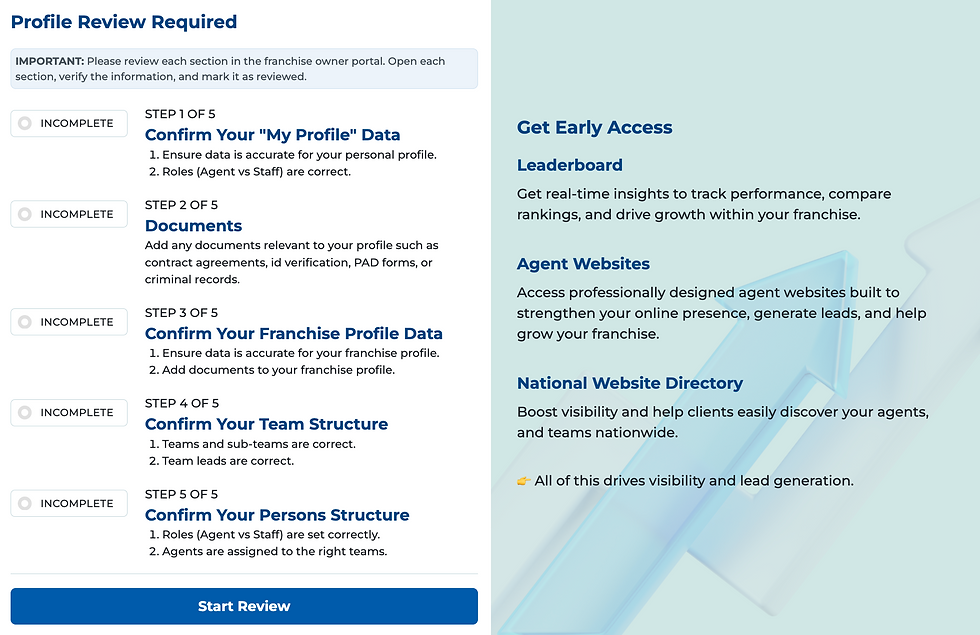
Each of the five sections has a Review Required banner across the top. Open the section, check that the information matches what you know to be correct, and click I Confirm that I have reviewed this section.

Once confirmed, the banner updates to show that section is done and how far along you are overall. You can also click View Checklist at any point to see the full status of all five sections - which are complete, which are outstanding, and what each one is asking you to confirm.
You do not have to finish in one sitting. Your progress is saved, so you can stop and come back. When all five sections are confirmed, your review is complete.
Checklist Step 1 - Confirm Your Personal Information.
In this step, you need to review and validate your personal information. Click Overview from the left side bar on the left sidebar.
Below, you can watch a short video to understand this step.
Checklist Step 2 - Access to the Documents Section.
Click Documents from the left side bar and confirm you can open this section.
This is your secure space for confidential documents. Anything you upload here is visible only to you and head office.
Each file can be up to 20 MB, with a total of 250 MB of storage available. If you're unable to access this section or need more storage, email us at brokerbridge-support@dlcg.ca and we'll look into it.
Below, you can watch a short video to understand this step.
Checklist Step 3 - Confirm Your Franchise Information.
Confirm your franchise structure, licences, contracts, and main contact details. Click Franchise under MY ORGANIZATION in the left sidebar and follow the steps.
Below, you can watch a short video to understand this step.
Checklist Step 4 - Confirm Your Team Structure.
Confirm the teams within your franchise, including their addresses and sub-team relationships. Click Organization in the left sidebar and follow the steps.
Below, you can watch a short video to understand this step.
Checklist Step 5 - Confirm Your Active Agents.
Review the agents associated with your franchise. Click Person under MY ORGANIZATION in the left sidebar and follow the steps.
Below, you can watch a short video to understand this step.
You Do Not Have to Do This Alone
As Franchise Owners, Steps 1 and 2 are yours to complete. Your personal information and your Documents section are visible only to you, so nobody else can confirm them on your behalf.
Steps 3, 4, and 5 are a different matter. Confirming your franchise details, your team structure, and your active agents can be handed to someone on your team.
Who can help. One of the franchise owners, your admin, executive assistant, or anyone on your staff you trust with your franchise records.
How to request an account. Email us at brokerbridge-support@dlcg.ca with your staff member's first name, last name, and email address.
What happens next. We create their BrokerBridge account and send them an invitation to set it up. They can then work through Steps 3, 4, and 5 alongside you or on your behalf.
Up Next: What is Leaderboard?
With your review complete, Leaderboard is where you can see your franchise's funded volume and production. Here's what it shows and how to read it.
Want more detail on the platform itself? Our Frequently Asked Questions page answers what franchise owners ask us most.
Last Updated: August 13, 2026.