

Login to BrokerBridge
Updated: Aug 14
Accessing BrokerBridge for the first time.
Before You Start
Make sure you have an authenticator app installed on your phone. You will need it partway through this process, and you cannot complete your login without it.
If you have not installed one yet, start with Setting Up Your Authenticator, then come back to this page.
Your Invitation Email
Your BrokerBridge invitation email is valid for 7 days. If your link has expired or you cannot find your invitation email, email us at brokerbridge-support@dlcg.ca and a member of our team will send you a fresh link.
The subject line will read:
[Your First Name] [Your Last Name]: Start Your Onboarding Journey - BrokerBridge
The email will include the branding of your network (DLC, MCC, or MA). The screenshot below shows the email with branding removed for training purposes only.
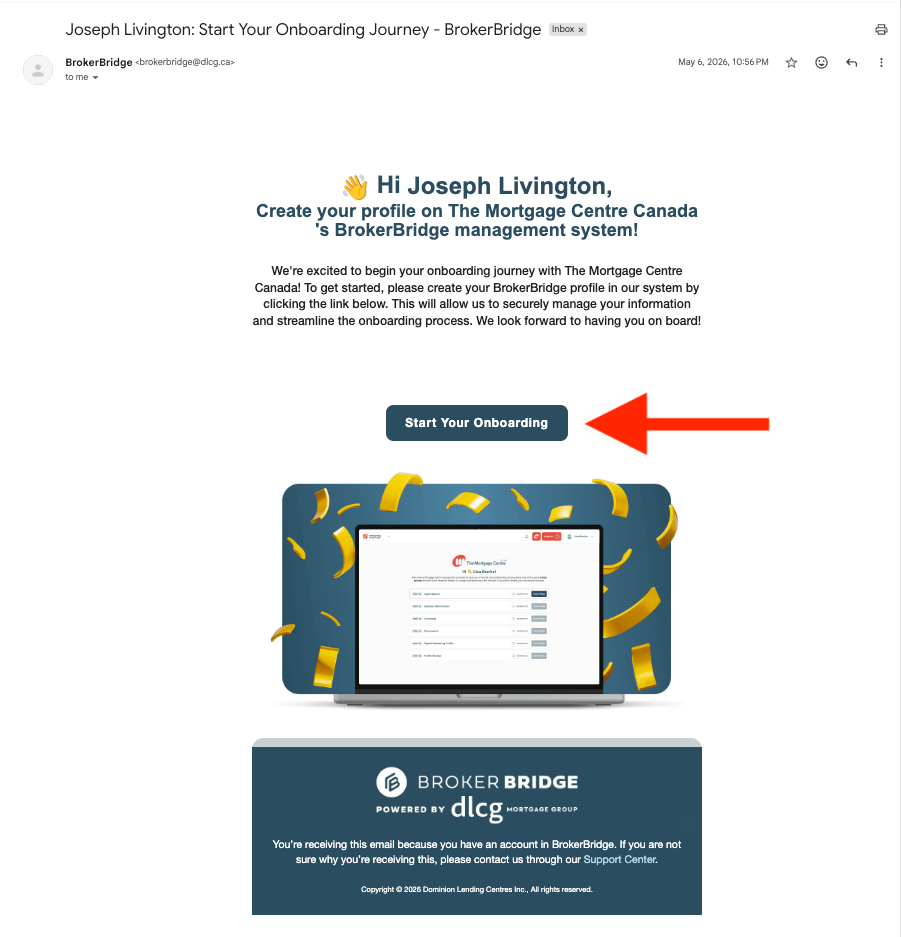
Note: The actual email you receive may look slightly different from this example. If the email is not in your inbox, check your spam folder.
Click Start Your Onboarding.
Verify your identity
You will be taken to https://login.brokerbridge.dlcg.ca/. Bookmark this URL. This is where you will log in to BrokerBridge from now on.

The login page asks you to enter a verification code. The code is sent to you in a second email from brokerbridge@dlcg.ca with the subject line: Login Code - BrokerBridge

The code is valid for three minutes. Enter it on the login page and click Continue. If the code expires before you enter it, return to your original invitation email and click Start Your Onboarding again. A new code will be sent immediately.
Connect Your Authenticator App
The platform now walks you through setting up two-factor authentication. Open your authenticator app on your phone, scan the QR code on screen (or enter the setup key shown), and confirm.
From now on, you will be asked for a code from your authenticator app every time you log in to BrokerBridge. Keep the app handy.
Create Your Password
Set a password for your account. The password requirements appear in a pop-up on the screen, so you can see them as you choose. Once your password is set, you are in.
Up Next: Franchise Owners' Checklist
You are in. Next, work through your checklist to review your franchise details and make sure your records are accurate before launch.
Want more detail on the platform itself? Our Frequently Asked Questions page answers what franchise owners ask us most.
Last Updated: August 13, 2026.